Guide
How to remove leftover app code from a Shopify theme
When you uninstall a Shopify app, code it added to your theme files can stay behind. You remove it by working on a duplicate of your theme: find the code the app added, check it, delete it from the copy, then preview and publish. You can do that by hand or with ThemeSweep.
Why the code stays behind
Some apps add snippets, script tags or CSS directly to your theme files. Uninstalling the app does not always remove those edits. Apps built on Shopify theme app extensions are different: their blocks are removed with the app.
Remove it by hand
- In your Shopify admin, go to Online Store > Themes and duplicate your live theme. Work on the copy.
- Open Edit code on the copy. Search layout/theme.liquid, the snippets folder and the assets folder for the old app's name.
- Look for render tags that call snippets the app added, and for script or stylesheet tags that load the app's files.
- Remove what you are sure belongs to the old app. Preview the copy and test your product pages, cart and checkout links.
- Publish the copy only when it works. Keep the old theme until you are happy.
Remove it with ThemeSweep
- Install ThemeSweep from the Shopify App Store and run a read-only scan. Nothing in your theme changes.
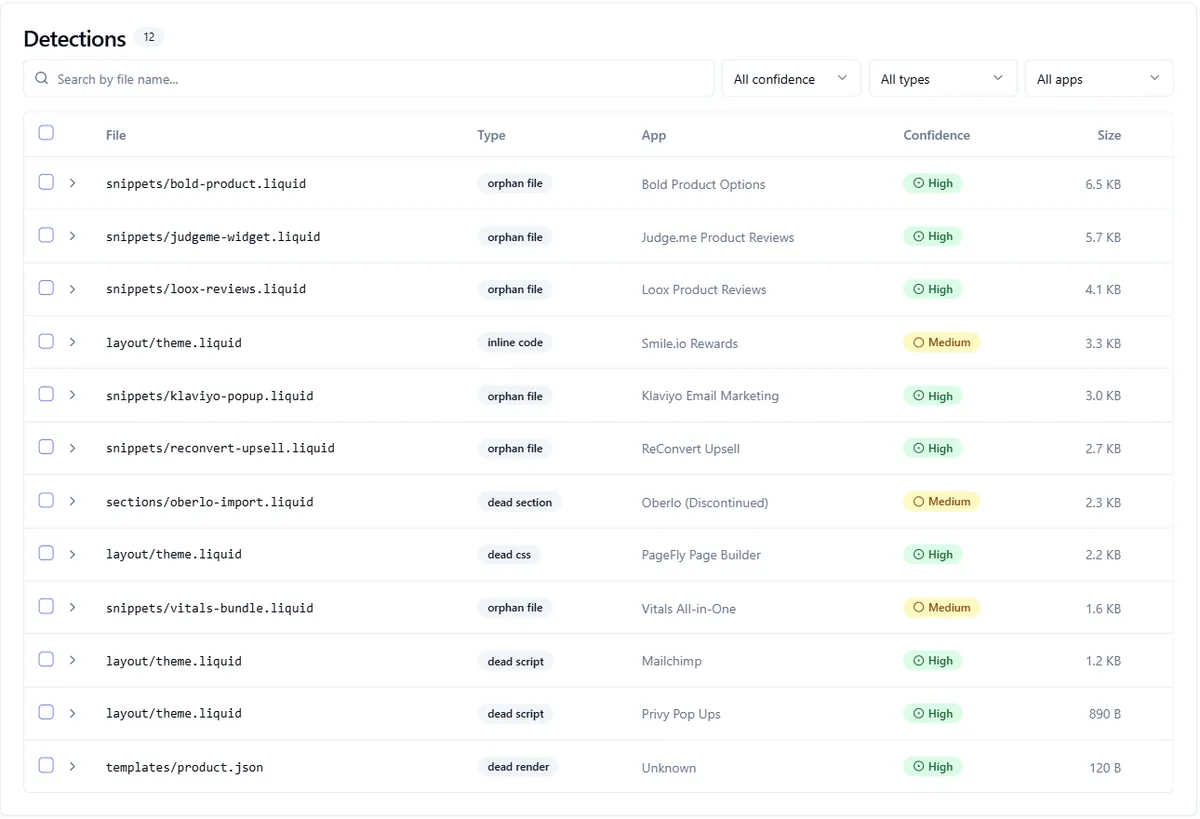
- Review each finding: the file, the code, the likely source app and the confidence level.
- Select the findings you want gone. Choose to remove them or to comment them out (quarantine mode).
- ThemeSweep checks the selected code again, applies the change to a duplicate theme and gives you a preview.
- Publish when you are happy. A file backup stays available, so you can roll back for 30 days.
What ThemeSweep can miss
It only recognizes patterns it can see in supported text files. A script tag that an uninstalled app left in layout/theme.liquid may not be flagged, so check that file by hand as well.
Common questions
Why is there app code in my theme after I uninstalled the app?
Some apps add snippets, script tags or CSS directly to your theme files. Uninstalling the app does not always remove those edits. Apps built on Shopify theme app extensions are different: their blocks are removed with the app.
How do I find leftover app code by hand?
Duplicate your theme first. Then search layout/theme.liquid, the snippets folder and the assets folder for the old app's name, and check each match before you delete it. Look for render tags that point to snippets the app added.
How does ThemeSweep remove leftover app code?
Install ThemeSweep and run a read-only scan. Review each finding, its likely source app and its confidence. Select the ones you want gone. ThemeSweep makes the change on a duplicate theme so you can preview it, and keeps a backup you can roll back for 30 days.
What can ThemeSweep miss?
It only recognizes patterns it can see in supported text files. A script tag that an uninstalled app left in layout/theme.liquid may not be flagged, so check that file by hand as well.
Try it on your theme
ThemeSweep has a Free plan with unlimited diagnostic scans and one single-finding cleanup. Paid plans start at $9.99 a month. See pricing.
Install on Shopify